安装与初始配置
这一页单独把安装流程提出来,方便你在实际操作时对照执行。
1. 安装 tmux
先检查版本:
tmux -V
推荐版本:
- tmux 3.2+
- 更推荐 3.3
常见安装命令:
macOS
brew install tmux
Ubuntu / Debian
sudo apt update
sudo apt install tmux
CentOS / Rocky / AlmaLinux
sudo yum install tmux
或:
sudo dnf install tmux
Arch Linux
sudo pacman -S tmux
2. 安装 LongwayBai/tmux-config
git clone https://github.com/LongwayBai/tmux-config.git
cd tmux-config
./install.sh
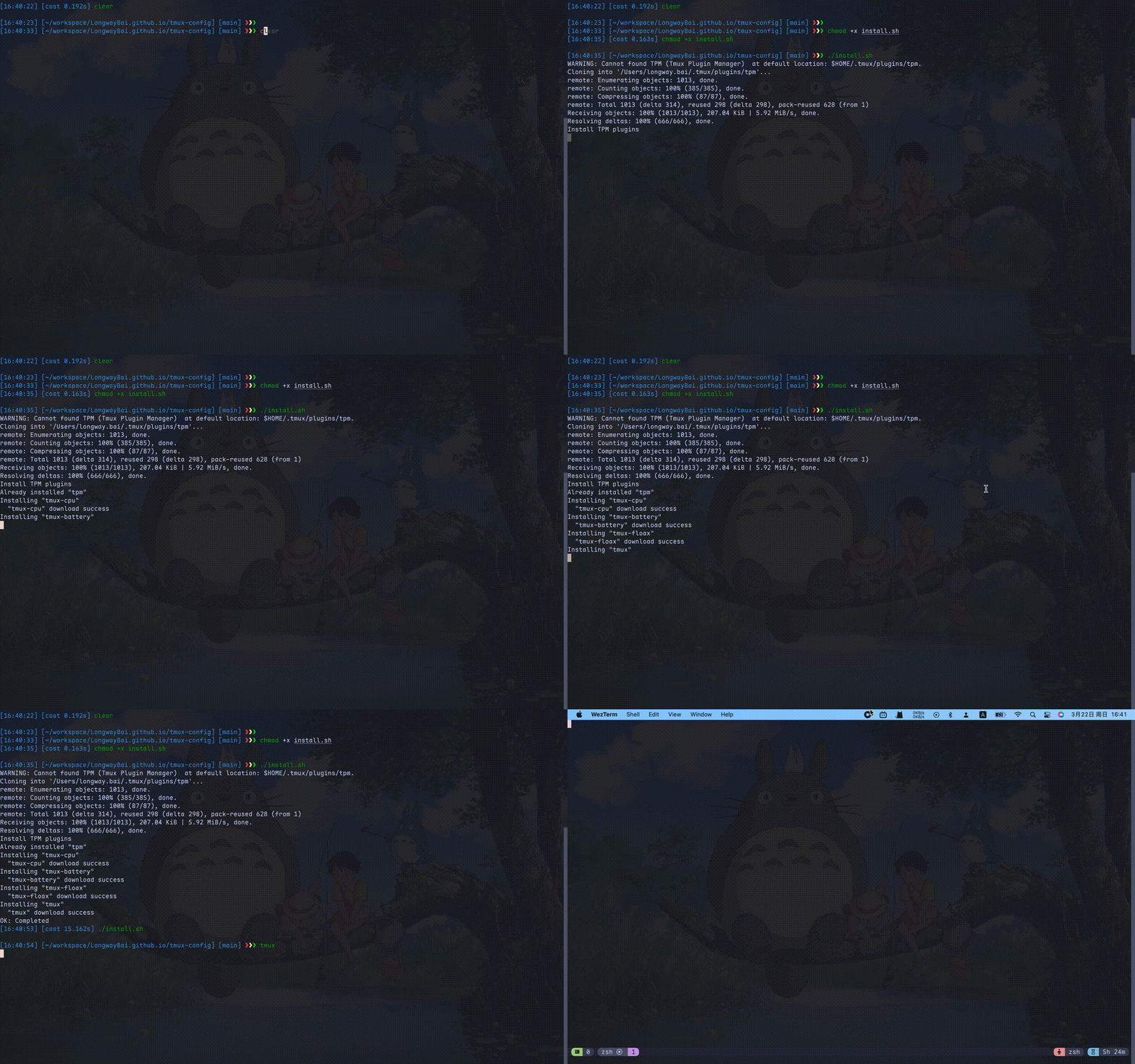
图:安装脚本会备份旧配置、复制文件,并尝试调用 TPM 安装插件。
3. 安装脚本做了什么
install.sh 会完成或尝试完成这些动作:
- 检查 tmux 是否已安装。
- 自动安装 TPM(如果本机还没有)。
- 备份
~/.tmux.conf到~/.tmux.conf.bak。 - 复制仓库中的
tmux/目录到~/.tmux/。 - 创建
~/.tmux.conf -> ~/.tmux/tmux.conf的软链接。 - 调用 TPM 尝试安装插件。
注意:这不是“临时加载”,而是会接管 tmux 主配置入口。
4. 手动安装方式
如果你不想执行安装脚本,也可以手动操作:
git clone https://github.com/LongwayBai/tmux-config.git
cd tmux-config

cp ~/.tmux.conf ~/.tmux.conf.bak 2>/dev/null || true
cp -a ./tmux/. ~/.tmux/
ln -sf ~/.tmux/tmux.conf ~/.tmux.conf
git clone https://github.com/tmux-plugins/tpm ~/.tmux/plugins/tpm
然后进入 tmux,按:
Ctrl+a Shift+I
让 TPM 安装插件。
5. 常见安装问题
遇到问题先试试这个
插件不生效时,最有可能救命的一个快捷键:先按 Ctrl+a Shift+I,它会重新安装所有插件。
主题没有生效
优先尝试:
Ctrl+a Shift+I
插件没有加载
可以手动执行:
~/.tmux/plugins/tpm/bin/install_plugins
macOS 剪贴板不好用
README 给出的可选方案:
brew install reattach-to-user-namespace